Integration with Ersilia Hub Models
The capabilities for the management and prioritization of a given chemical space within TidyScreen can be further extended by applying ML/AI models provided by the Ersilia Models Hub, which is developed and maintained by the Ersilia Open-Source Initiative.
In this example, we will further extend on the chemical space tutorial, since we are particularly interested in applying a ML model to predict the price of a set of reactants prior to combinatorialy enumerating the synthetic virtual chemical space.
In a nutshell, the steps involved in the procedure are the following:
- Filtering of the reactant of interest from the emolecules database (specifically primary and secondary amines);
- Subsetting of the resulting libraries using drug-like properties;
- Prediction of the corresponding building blocks prices based on the eos7a45 model included in the Ersilia Models Hub;
- Subsetting of the reactants based on custom price filtering by using terminal-based SQL statements.
If you already know how to use TidyScreen to read molecules, subset by functional groups and execute filtering workflows, you can directly skip the section dedicated to properties computation using Ersilia Hub Model.
STEP 1: Initial reactants filtering
> # Import required modules
>>> from tidyscreen import tidyscreen as ts
>>> from tidyscreen.chemspace import chemspace as chemspace

> # Create a dedicated project for the synthesis
>>> ts.create_project("$HOME/Desktop/example", "price_filtering")

> # Activate the project just created
>>> price_filtering = ts.ActivateProject("price_filtering")

> # Activate the ChemSpace section of the project
>>> price_filtering_chemspace = chemspace.ChemSpace(price_filtering)
Next, import the whole eMolecules database into the project database.
> # Input the eMolecules database into ChemSpace from the corresponding 'emolecules.csv' file"
>>> price_filtering_chemspace.input_csv("$PATH/TO/emolecules.csv")

> # Note_1: we are not providing the full archive corresponding to the emolecules database. The user can obtain it upon request to the authors.
> # Note_2: the input of the whole eMolecules database may take a while to load, since it contains millions of molecules.
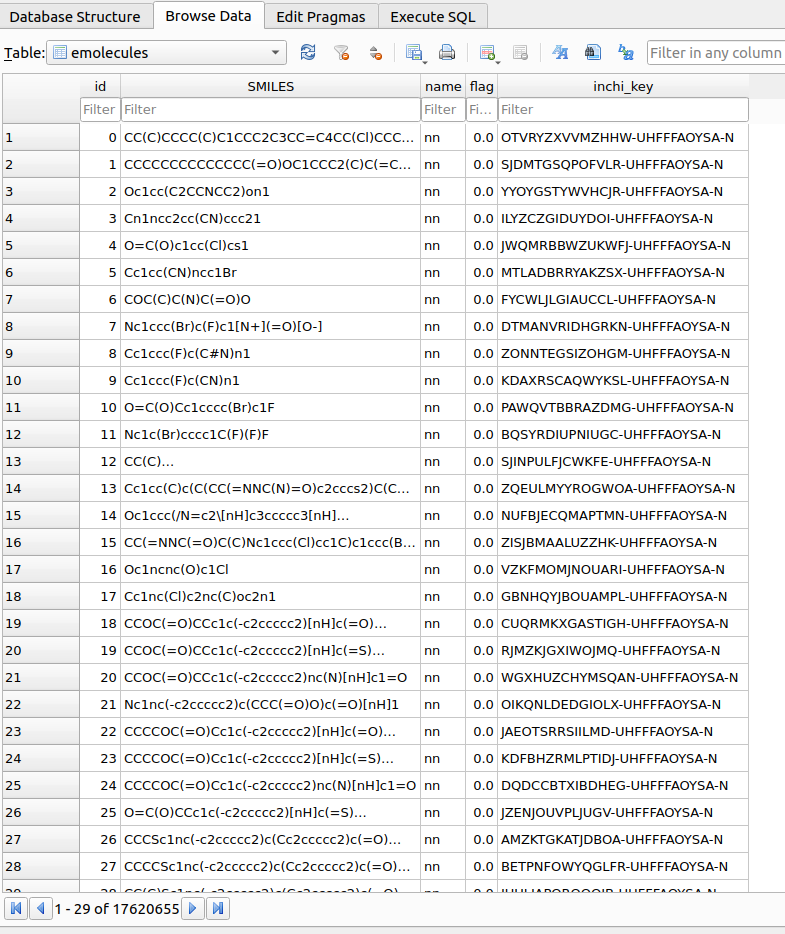
Upon reading the reactants, a table named emolecules in the chemspace.db database located within the $PROJECT_PATH/chemspace/processed_data/ folder. A quick snapshot of the generated table is shown in Figure 3:
Upon reading the reactants, a table named emolecules in the chemspace.db database located within the $PROJECT_PATH/chemspace/processed_data/ folder. A quick snapshot of the generated table is shown in Figure 3:
Once the reactants emolecules table has been created, SMARTS filtering procedures can be applied to select the required building blocks. As a first step, lest check the available SMARTS filters. In this case, built-in filters provided upon TidyScreen installation are shown:
> # List available SMARTS filters to obtain reactants
>>> price_filtering_chemspace.list_available_smarts_filters()

> # Outputs:
>>> Available SMARTS filters:
>>> Filter_id: 1, Filter_Name: Aminoacids, SMARTS: [NX3H2,NX4+H3][CX4H]([*])[CX3H0](=[OX1])[OX2H,OX1-]
>>> ...
>>> Filter_id: 10, Filter_Name: Aldehydes, SMARTS: [CX3H1](=O)[#6]
>>> Filter_id: 11, Filter_Name: PrimAmines, SMARTS: [NX3;H2;!$(NC=O)]
>>> Filter_id: 12, Filter_Name: SecAmines, SMARTS: [NX3;H1;!$(NC=O)]
...
As you can see in the output, althought there are custom filters matching primary (id: 11) OR secondary amines (id: 12) included by default, there is no current filter matching BOTH of them. Consequently, we can add our own custom filter:
> # Add a custom filter indicating the SMARTS, followed by a description of the filter
>>> price_filtering_chemspace.add_smarts_filter("[NX3;H1,H2;!$(NC=O)]","Primary_and_Secondary_Amines")
When listing again, we can see that the filter has been added to the local TidyScreen installation with id:54:
> # List available SMARTS filters to obtain reactants
>>> price_filtering_chemspace.list_available_smarts_filters()

> # Outputs:
>>> Available SMARTS filters:
>>> Filter_id: 1, Filter_Name: Aminoacids, SMARTS: [NX3H2,NX4+H3][CX4H]([*])[CX3H0](=[OX1])[OX2H,OX1-]
>>> ...
>>> Filter_id: 10, Filter_Name: Aldehydes, SMARTS: [CX3H1](=O)[#6]
>>> Filter_id: 11, Filter_Name: PrimAmines, SMARTS: [NX3;H2;!$(NC=O)]
>>> Filter_id: 12, Filter_Name: SecAmines, SMARTS: [NX3;H1;!$(NC=O)]
...
>>> Filter_id: 54, Filter_Name: Primary_and_Secondary_Amines, SMARTS: [NX3;H1,H2;!$(NC=O)]
From a synthetic point of view and due to the underlying reaction mechanism, there are also additional requisites related to the building blocks structure that further imposes decoration limitations. Please refer to the chemical space tutorial for further details.
Overall, we need to concatenate multiple filters in a single filtering workflow so as to comply with all the above-mentioned criteria at once. The required procedure is:
> # Create a workflow to filter primary and secondary amines (54:1) for A3 coupling reactions reactions
>>> price_filtering_chemspace.create_smarts_filters_workflow({54:1,10:0,4:0,5:0,25:0,35:0,21:0,53:0,2:0,17:0,6:0,7:0,8:0,9:0})
Once created, available reactants filtering workflows can be listed:
> # List available filtering workflows
>>> price_filtering_chemspace.list_available_smarts_filters_workflows()

> ### Outputs
>>> Available SMARTS filters workflows:
> # Workflow to filter primary AND secondary amines
>>> Workflow_id: 2, Filter_Specs: {"54": 1, "10": 0,"4": 0, "5": 0, "25": 0, "35": 0, "21": 0, "53": 0,"2": 0, "17": 0, "6": 0, "7": 0, "8": 0, "9": 0}, Description: Filter primary amines for A3 coupling reactions
A filtering workflow can be applied on a given table (i.e. emolecules) that has already been stored in the chemspace.db using:
> # Apply workflow_filter_id: 1 on the 'emolecules' table
>>> price_filtering_chemspace.subset_table_by_smarts_workflow("emolecules",1)
Upon executing the filter, a table named tables_subsets will be created in chemspace.db with the objective of registering the filtering action:

tables_subsets containing the filtering actions.The info included in the tables_subsets is:
table_name: the source table on which the filtering workflow was applied.subset_name: the destination table to which the filtered compounds were written. This name is automatically created incrementally.filtering_type: the kind of filtering that originated the destination table. In this caseemolecules_subset_1was created by using SMARTS filtering (filteringby_propertiesis also possible, as we will see later)prop_filter: explicit indication ot the filtering workflow applied.description: this is requested to the used as descriptive information upon executing the filtering workflow.
In this specific example, the resulting filtered tables contained:
- Primary/Secondary amines: 1,420,273
The numbered of filtered compounds may vary depending on the version of the initial database you are using.
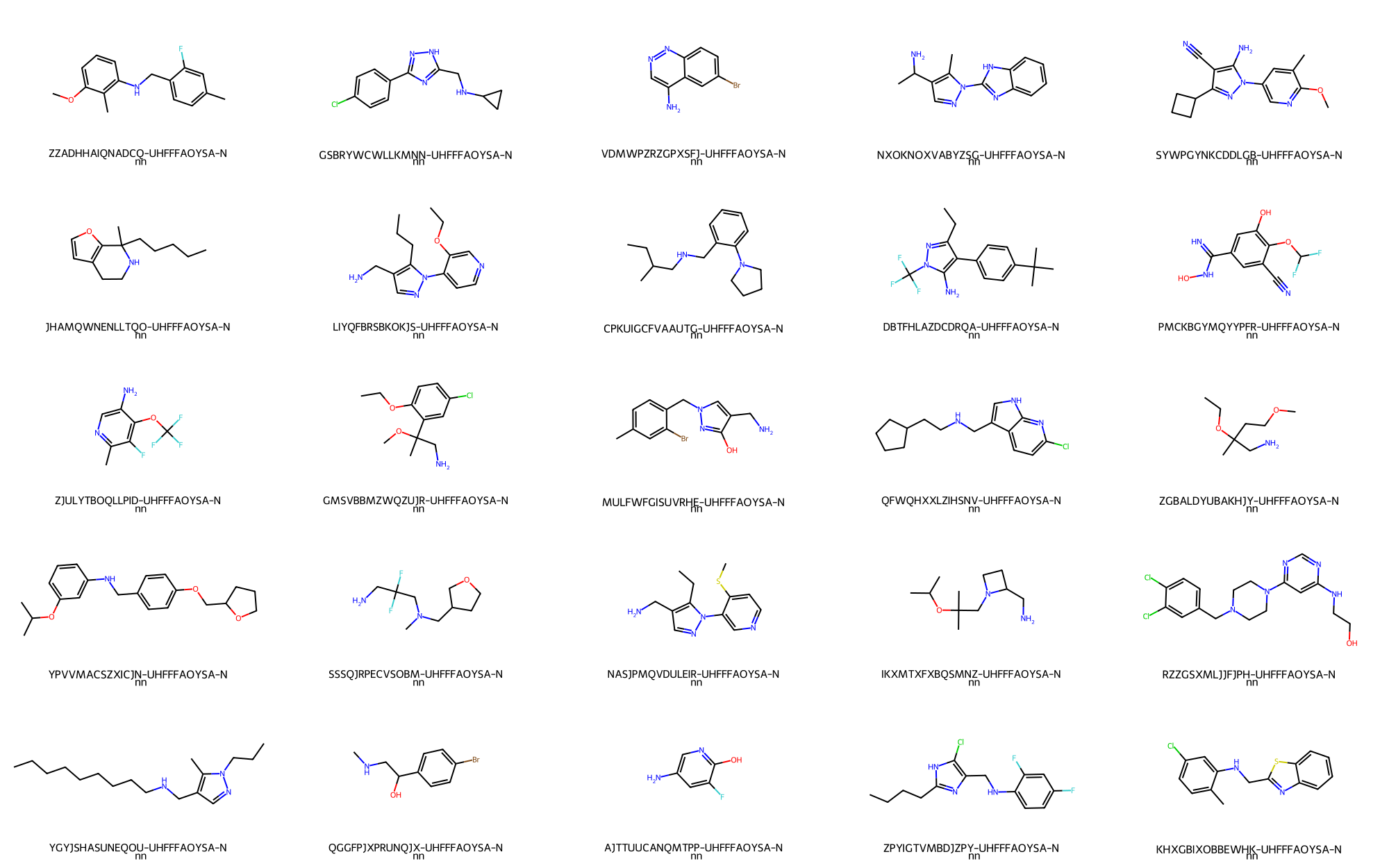
A random set of primary/secondary amines table can be depicted:
> # Randomly depict 25 primary amines
>>> price_filtering_chemspace.depict_ligand_table("emolecules_subset_2", limit=25,random=True)
The resulting depictions is:
- Primary/Secondary amines -> 25 / 1,420,273
STEP 2: Prioritization considering drug-like properties
A new round of filtering/prioritization criteria, such as by drug-like properties, may be accomplished on the resulting subsets. In this way, different physicochemical properties can be computed for the corresponding table subset as follows:
> ## By default the properties are computed: ["MolWt","MolLogP","NumHDonors","NumHAcceptors","NumRotatableBonds","TPSA"]
> ### You can specify whatever property computed by RDKit you wan using the 'properties_list' keyword
>>> price_filtering_chemspace.compute_properties("emolecules_subset_1")
After computing the properties on emolecules_subset_1, it is now possible to subset a given table containing computed properties. As an example, lets use the following criteria:
MolWt>= 200 andMolWt<= 500MolLogP>=1.5 andMolLogP<= 3NumRotatableBonds<= 2
In order to combine the filtering criteria, it is possible to construct a Python list indicating the threshold values as follows: ["MolWt>=200","MolWt<=500","MolLogP>=1.5","MolLogP<=3","NumRotatableBonds<=2"]. This list can now be passed the corresponding subsetting method in TidyScreen:
> # Subset 'emolecules_subset_1' using the given properties thresholds
>>> price_filtering_chemspace.subset_table_by_properties("emolecules_subset_1",["MolWt>=200","MolWt<=500","MolLogP>=1.5","MolLogP<=3","NumRotatableBonds<=2"])
After executing the filtering, a record of the action will be stored in the tables_subsets table:

tables_subsetswhich registers the filtering/subseting actions.As can be seen the table emolecules_subset_1_subset_4 has been created based on the corresponding filtering workflow. It is advisable to retain this table name for tracebility of the reactants filterings history. If the user wants to copy this subsetted table with a more comprehensive name, it can be done as follows:
> ## Copy the subseted table with a new name
>>> price_filtering_chemspace.copy_table_to_new_name("emolecules_subset_1_subset_4","aldehydes_for_A3_coupling")
In case the user wants to save the filtered table as a .csv file for storing purposes use:
> # Save a .csv file with the filtered table
>>> price_filtering_chemspace.save_table_to_csv("emolecules_subset_1_subset_4")
Overall, the final list of prioritized primary and secondary amines contains 137158 reactants. Link to the csv file
STEP 3: Predicting prices using Ersilia Hub Models
The diverse set of models as provided by the Ersilia Hub can be applied a to table containing smiles strings. In this example we will use the model eos7a45 in order to predict reactants prices, which will be afterwards used to prioritize building blocks based on lowering the budget of a screening campaign.
In order to apply a model, the Ersilia Model Hub should be installed in the system as is indicated by the README.md file of the TidyScreen repository. Once installed, the procedure to generate the prediction on a given table is:
>>> price_filtering_chemspace.apply_ersilia_model_on_table("emolecules_subset_1_subset_2","eos7a45")

# The first string indicates the table on which to compute predictions

# The second table is an identifier of the Ersilia Model
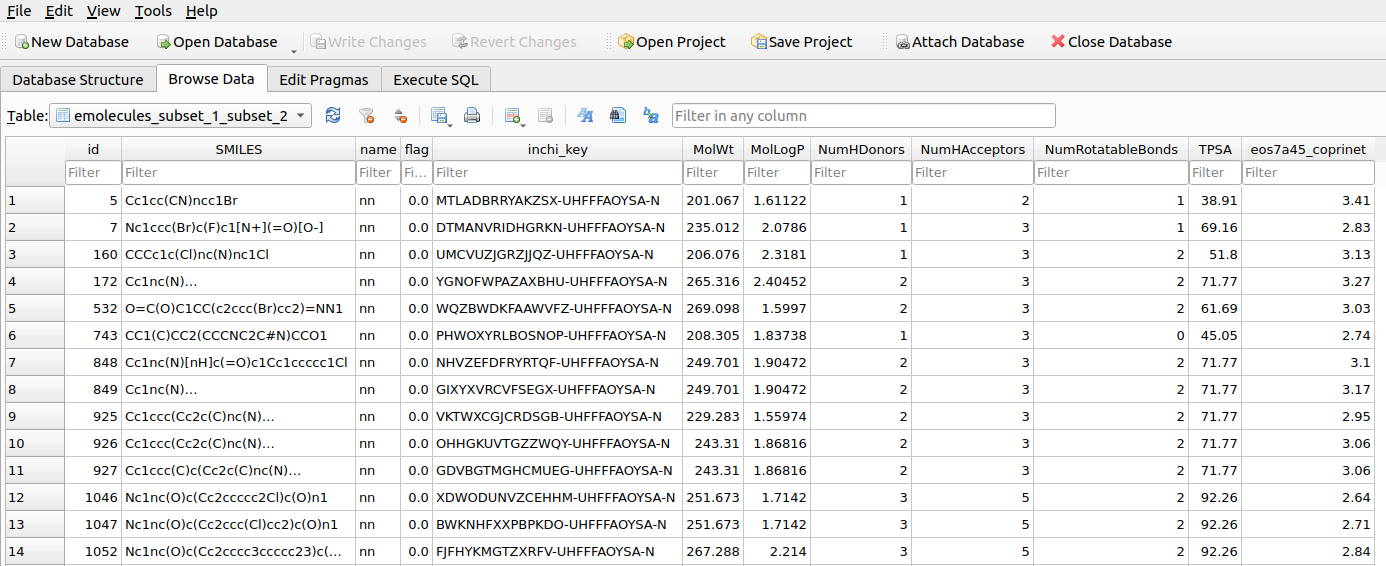
Once executed, the table will contain one or more columns (depending on the model output feature - check the Ersilia catalog -) which is named: 'model_name_feature_name'. In this particular case, only one feature is outputed by the eos7a45 model, with the feature being named 'coprinet', so the the name of the calculated column will be 'eos7a45_coprinet'. The Figure below shows an overview of the corresponding table.
tables_subsetswhich registers the filtering/subseting actions.STEP 4: Subseting price ranges
Once computed, price ranges may be subseted by using the subset_table_by_properties() functions, as is explained in the chemical space tutorial tutorial.
In this case, we will se a different approach, consisting in the use of SQL statements in the bash console.
The following SQL statement will select the 50 lowest prices (excluding NULL values arising from prediction computation):
$ sqlite3 chemspace.db "SELECT * FROM emolecules_subset_1_subset_2 WHERE eos7a45_coprinet IS NOT NULL ORDER BY eos7a45_coprinet ASC LIMIT 50;"
The filtering will be printed to the console. In case the user wants to create a new table with the filtered molecules, it can be done as follows:
$ sqlite3 chemspace.db "CREATE TABLE lowest_price_amines AS SELECT * FROM emolecules_subset_1_subset_2 WHERE eos7a45_coprinet IS NOT NULL ORDER BY eos7a45_coprinet ASC LIMIT 50;"
The subseted table can now be further used on further TidyScreen procedures.